
Contacts, conversations, and calling. Now connected.
Manage every contact from one workspace across web and mobile, with advanced filters, Smart Lists, automatic customer statuses, and more context for messages and calls.
One contact list
Everyone starts in Contacts
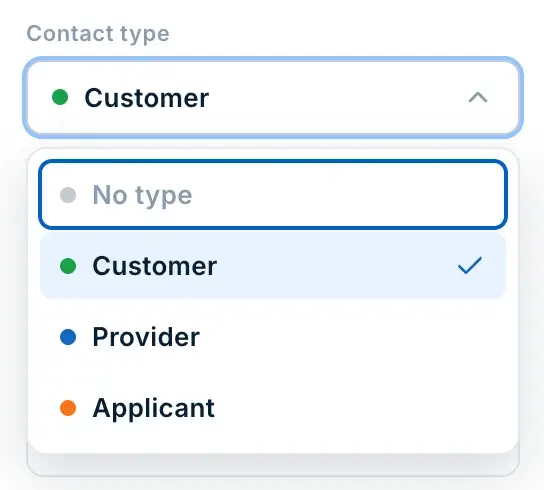
Contacts no longer need to begin as a customer or provider. Add someone without assigning a type, then update the type as the relationship changes.
People who call your ScheduleDrop number also appear in Contacts, even when they are not yet saved as a customer, provider, or applicant. That means your ScheduleDrop number can serve as the main line for day-to-day business communication.
Filter the list by customers, providers, or applicants. Applicants are people who submitted one of your hiring forms. Search, sorting, and field controls help you get to the right record quickly.
A contact can have more than one type when roles overlap, such as someone who is both an applicant and a provider. Creating the first booking for a new person automatically classifies them as a customer.
Flexible filters and Smart Lists
Build the exact contact list you need
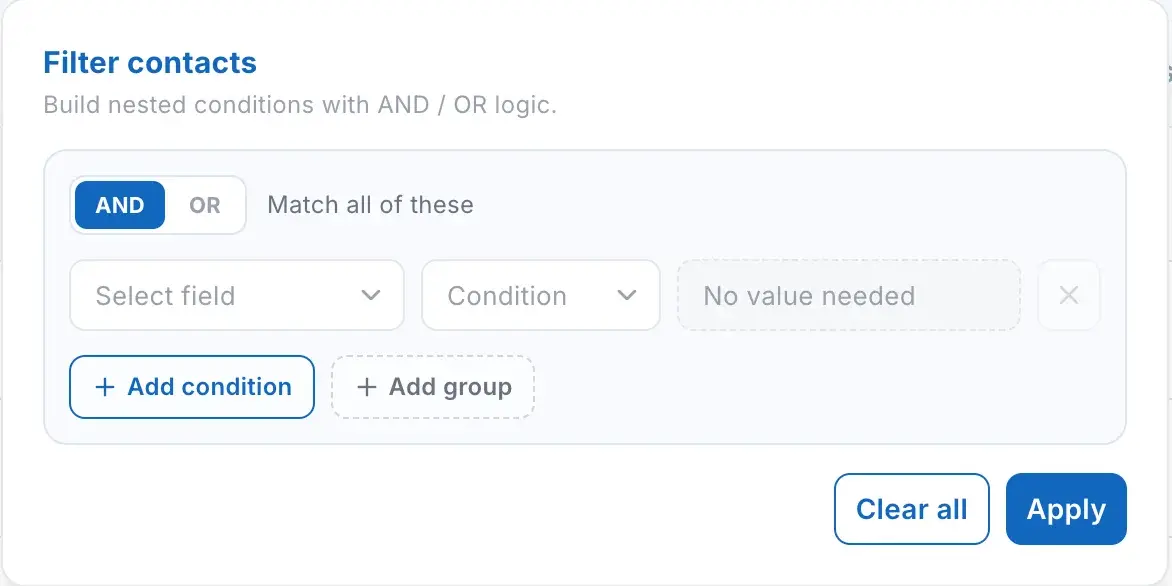
Combine conditions with AND or OR logic, then nest groups for a more precise search. You can narrow the list by the details that matter to your workflow instead of rebuilding the same search by hand.
Save a useful filter as a Smart List and it stays available in Contacts. Smart Lists update as contact information changes, so a view like Recurring Customers stays current automatically.

Automatic customer lifecycle
Customer statuses stay in step with the work
Customer contacts can now have multiple statuses at the same time when that adds useful context. For example, a new customer can also be One-Time or Recurring.
- New
- Their first booking was created and they have no prior service history. New remains for 30 days unless they become lapsed. After a second booking or recurring enrollment, it can appear with One-Time or Recurring.
- One-Time
- They have at least one upcoming booking, but no active recurring schedule.
- Recurring
- They are enrolled in an active repeating schedule.
- One-Time Lapsed
- They completed a one-time booking and have no other active one-time bookings.
- Recurring Lapsed
- Their recurring booking was canceled and no other active recurring bookings remain.
- Reactivated
- They were lapsed and booked again. Reactivated remains for 30 days before resolving to One-Time or Recurring.
ScheduleDrop assigns and refreshes these statuses automatically as customers, bookings, and recurring schedules change, giving your team an up-to-date view without manual cleanup.
One complete workspace
The full relationship stays in view
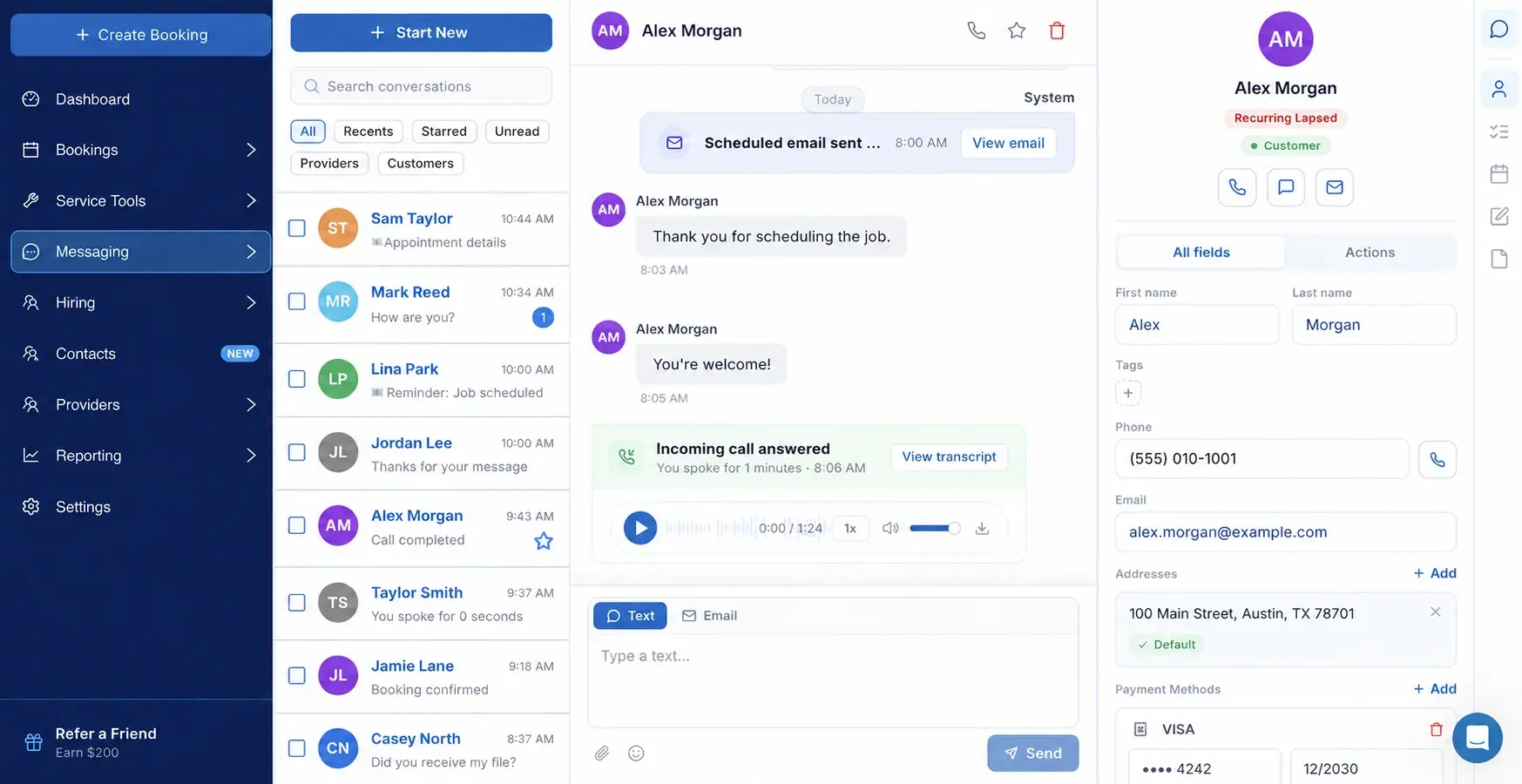
The previous customer profile experience now lives inside Contacts. Open a record to see contact details on the left, communication history in the middle, and the work connected to that person on the right.
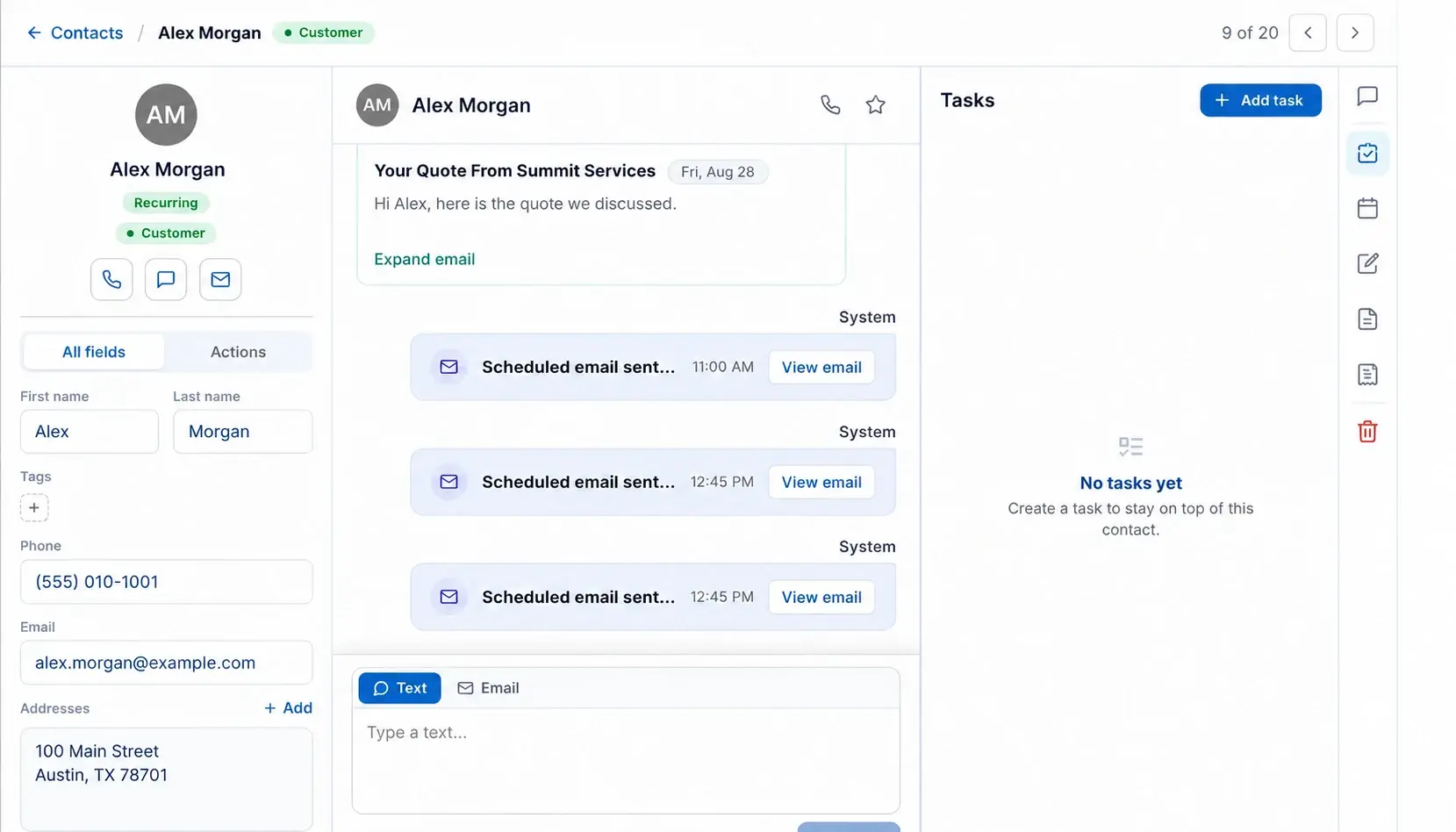
- Edit first and last name, tags, phone, email, addresses, payment methods, and contact types.
- Manage Do Not Disturb by channel for text messages, email, and outbound calls—or across all channels at once.
- Add a stored payment method directly from the contact record.
- Send or copy a registration link from Actions.
- Create a booking without leaving the contact.
Customer work
Bookings, notes, documents, and invoices stay close
Use the right-side navigation to open tasks, bookings, notes, documents, and invoices. Bookings include an inline daily, weekly, or monthly calendar, so you can review a customer's schedule without leaving the record.
Notes can now be color-coded, making preferences, special instructions, and internal follow-up easier to scan.
Documents sent from a contact stay tied to that record. You can also create an invoice from the customer workspace or remove the contact from the right-side navigation.
Provider records
Provider tools use the same workspace
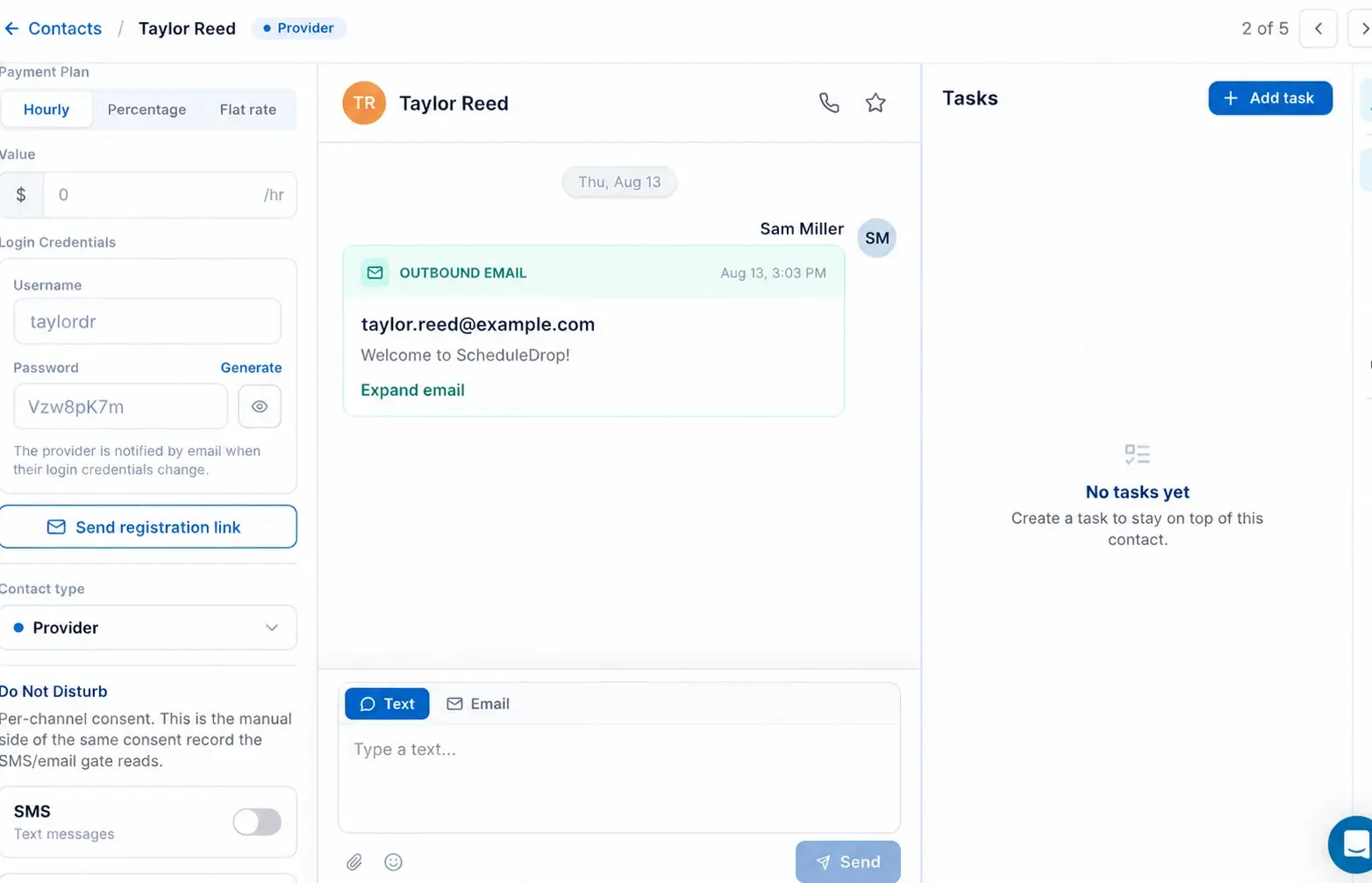
Providers now use the same contact workspace while keeping the provider-specific tools you already rely on. The View Provider Profile button still opens the previous provider profile when you need it.
Update hourly, percentage, or flat-rate pay from the contact record. Tasks, notes, documents, payments, and availability are available from the right-side navigation.
Provider login credentials are available here too, including a password generator and registration-link controls.
Redesigned conversations
Find the right conversation without losing context
Conversations now includes filters for All, Recents, Starred, Unread, Providers, and Customers. The contact panel remains beside the thread, so you can check profile information and open related tasks, bookings, notes, and documents while you reply.
The message composer now includes an emoji picker for texts and emails. You can also hide the conversation panel when you need more room for contact details, calendars, documents, notes, or tasks, then reopen it with one click.
Built-in calling
Make and review calls inside ScheduleDrop
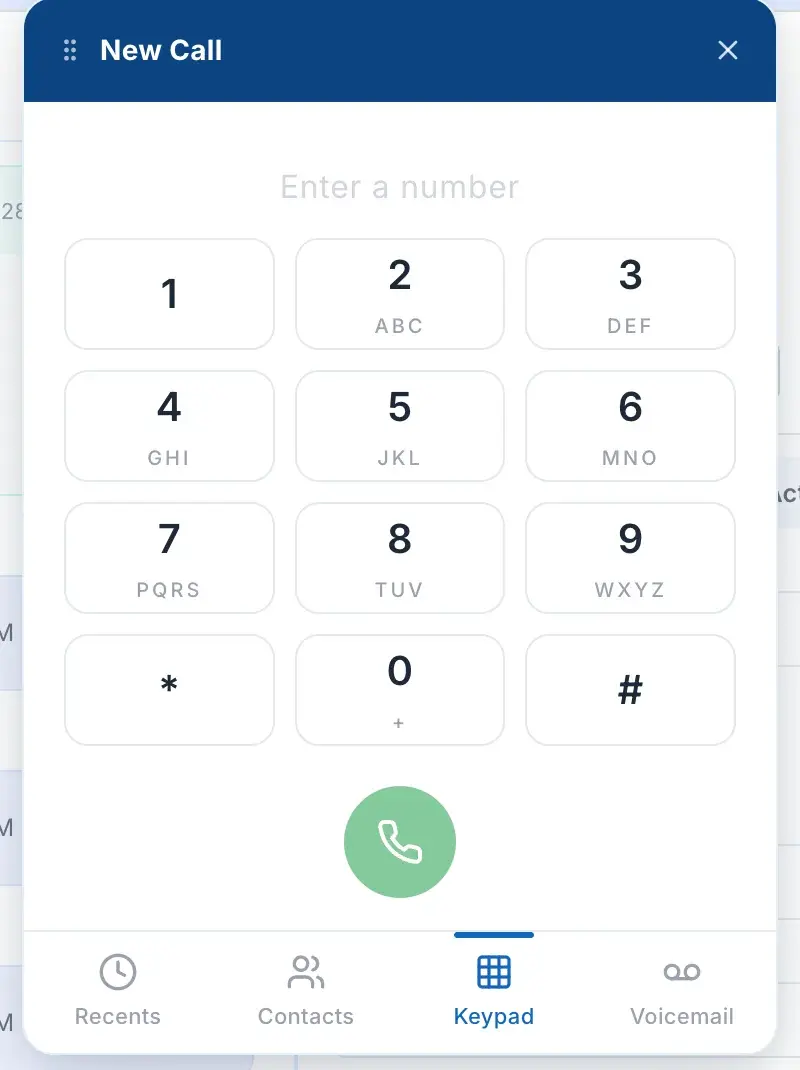
Select the phone button in the upper-right corner to call an existing contact or enter a new number. The calling workspace includes Recent calls, Contacts, and a Keypad. Voicemail appears in the workspace but is still coming soon.
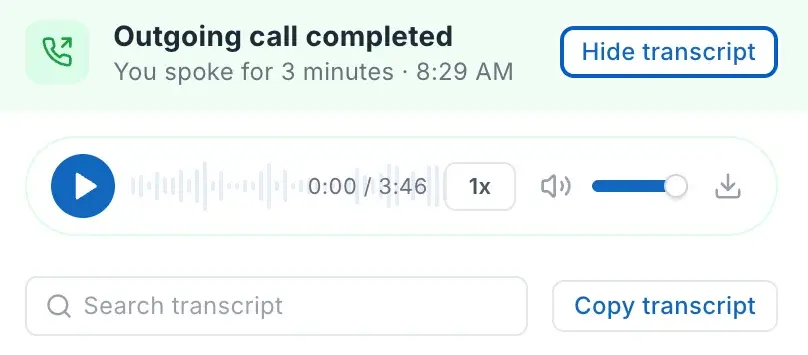
Completed calls include playback and download controls. When a transcript is available, search it or copy the full transcript for follow-up.
More in this release
Small changes that remove everyday friction
This release also improves multi-property scheduling and phone setup, while keeping familiar provider and Twilio workflows intact.
Custom booking titles
Add or edit a property-specific booking title instead of displaying only the contact name—ideal for Airbnb and multi-property clients.
Phone setup inside ScheduleDrop
Set up a Telnyx-powered business number, complete verification and A2P registration inside ScheduleDrop, or keep using your existing Twilio connection.
Start conversations faster
Use the mobile compose button to search for a contact and begin a new message without opening the contact first.
Guided mobile walkthrough
After updating the app, an in-app walkthrough introduces the new Contacts and Conversations experience.
Messaging rules and voicemail rules are visible in Settings as a preview, but they are still in progress and are not ready to configure yet.
Mobile app update
Contacts and conversations now match the way you work
The mobile app now brings all contact records together under one Contacts destination. Use All, Customers, Providers, or Applicants to narrow the list, then filter, search, export, or select contacts from the same screen.
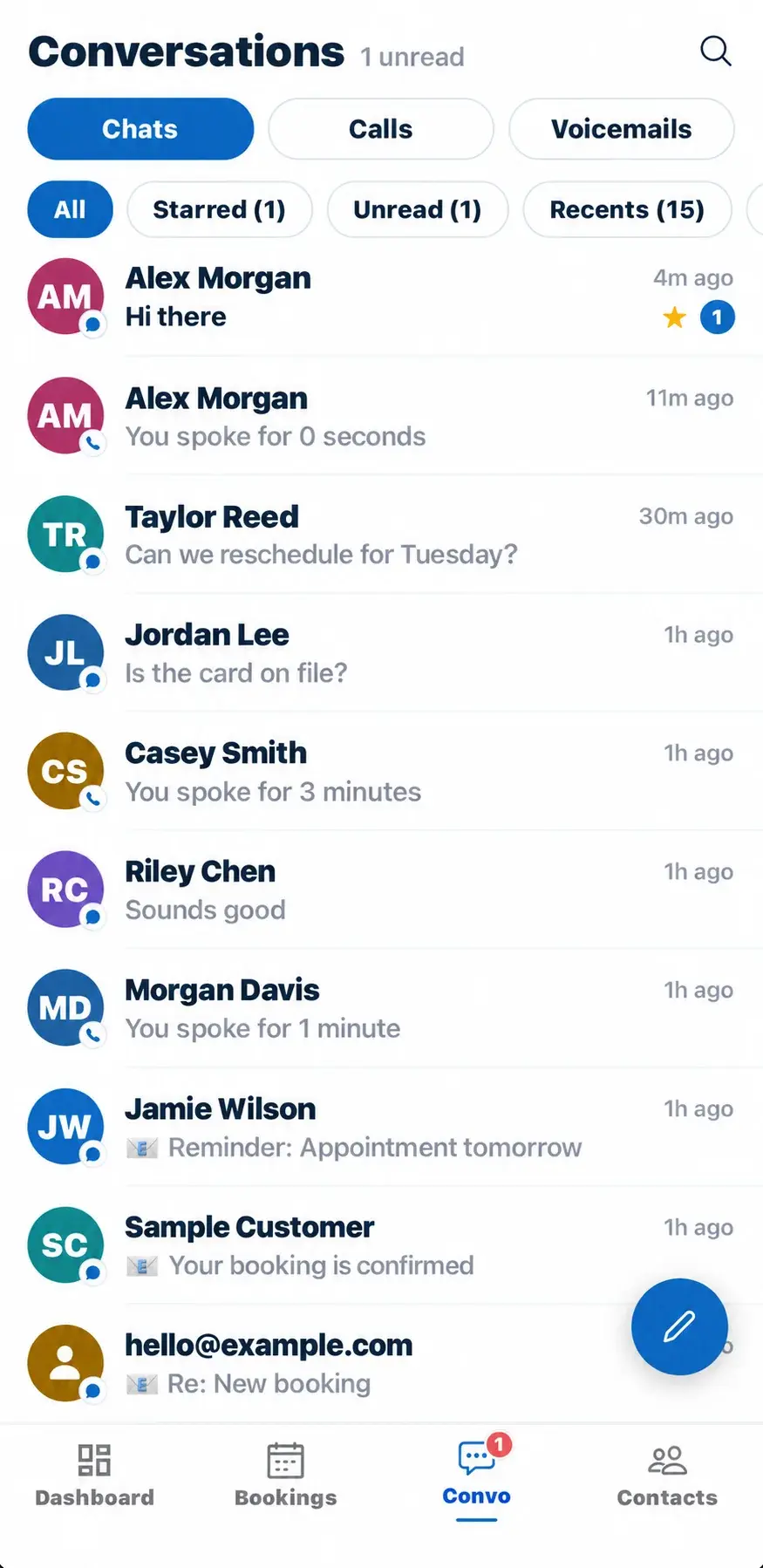
The mobile Conversations screen separates Chats and Calls at the top, with Voicemails visible as a coming-soon area. Quick filters for All, Starred, Unread, Recents, Providers, and Customers make it easier to find the thread or completed call that needs attention.
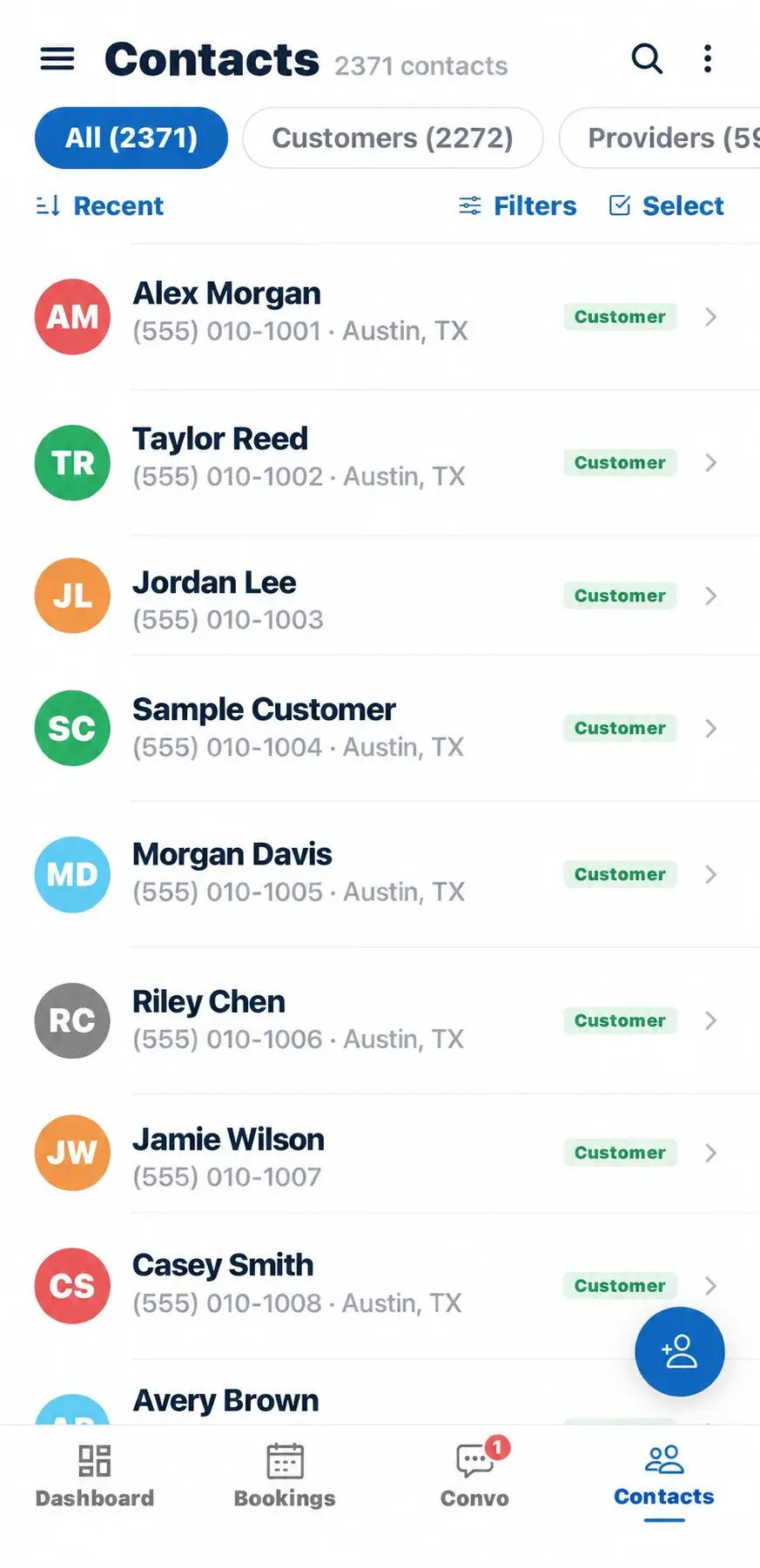
- Create filters and save Smart Lists from the mobile Contacts screen.
- Search contacts, export the list, select records, or start a new message.
- Open a contact to call, text, email, or manage tasks, notes, bookings, documents, and Do Not Disturb settings.
- Manage provider profiles, pay plans, login credentials, payments, and availability from mobile.
- Add emojis to both text messages and emails.
- Customize chat themes, bubble colors, and wallpapers—including an image from your phone.
- Choose and test notification tones or call ringtones, upload custom audio, or use silent and vibrate options.
- Use custom booking titles on mobile for Airbnb and multi-property work.
Where to find everything
The live features are available now
Contacts
Manage customers, providers, applicants, and other contacts.
Messaging → Conversations
Use the redesigned inbox and conversation filters.
Phone icon
Open calling, recent calls, contacts, and the keypad. Voicemail is coming soon.
Bookings
Add a custom title for a property or job while keeping the same contact.
Settings → Phone System
Set up a ScheduleDrop business number or keep using your existing Twilio connection.
Mobile Settings → Notifications
Choose notification tones, call ringtones, custom audio, or silent options.
Get started
See the new workspace in ScheduleDrop
Book a demo and we'll walk through Contacts, Conversations, calling, and the rest of your day-to-day workflow.
Billed every four weeks Setup done for you No setup fee