New integration ·
Introducing ScheduleDrop +

Keep your Quo number.
Automate your booking texts.
Your customers already know your number. Our new integration with Quo, formerly OpenPhone, brings ScheduleDrop’s automated confirmations, reminders, and two-way texts to the line you already use.
Call in Quo. See texts and call activity in your ScheduleDrop conversations.

Your existing Quo number
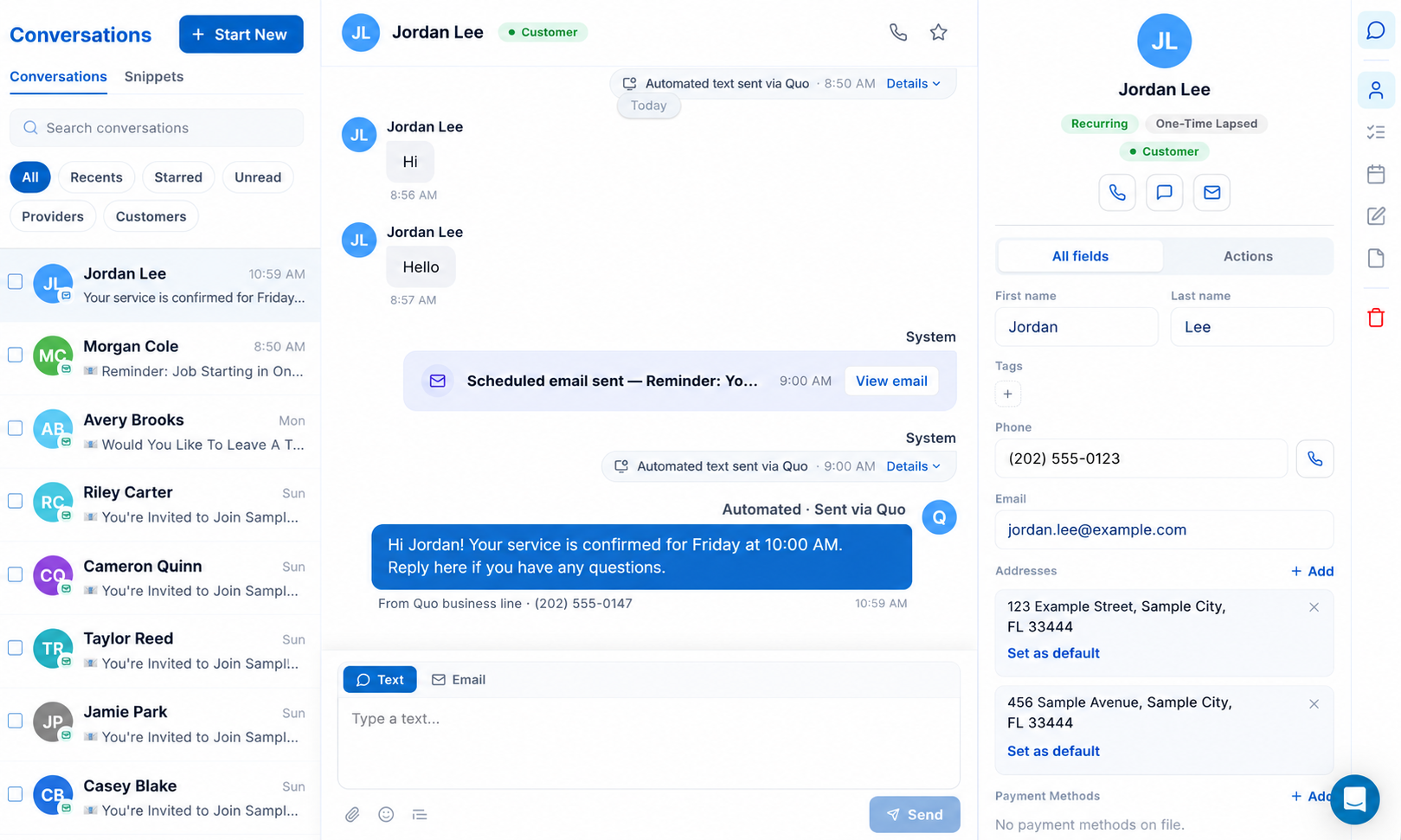
One number. Both conversations.
Hi Jordan, your service is confirmed for Friday at 10:00 AM. Reply here if you have a question.
Sent through your Quo number
ScheduleDrop
Message and reply visible here
Quo
Message and reply visible here
Call placed in Quo → call activity appears in ScheduleDrop afterward.
One familiar business number
Your customers shouldn’t have to keep track of multiple numbers.
A confirmation from one line, a reminder from another, and a call from a third makes a simple conversation harder than it needs to be. Keep using the Quo number your customers already know for their booking texts and your replies.
When a customer replies to a reminder, your team sees the message in Quo and ScheduleDrop. Answer from either place using the same number, with the conversation together in both apps.
The confirmation
The booking is confirmed from your familiar Quo number.
The reminder
The next scheduled text comes from that same number.
Your reply
Your team answers on the same line, with the history in view.
Scheduled text notifications
Edit the message in ScheduleDrop. Send it from Quo.
Keep managing your automations in ScheduleDrop. Edit your scheduled text notifications, choose what they say and when they go out, and let your connected Quo number deliver them.
Booking confirmations, upcoming-job reminders, and other automated texts for customers and providers all use your selected Quo number. You keep the booking workflow you already use, and customers keep one place to text you back.
The same workflow, from your existing line
- 1. Edit in ScheduleDrop. Update the text and schedule for your notification.
- 2. Send through Quo. The automation uses the connected number you selected.
- 3. Continue the conversation. Read the reply and respond in Quo or ScheduleDrop.
Choose your phone setup
Already use Quo? Keep the number your customers know.
Use Quo for your phone line and ScheduleDrop for the booking workflow. Prefer to make calls inside ScheduleDrop as well? Our built-in business line gives you that option.
Explore ScheduleDrop texting and calling →| Capability | Quo connection | ScheduleDrop line |
|---|---|---|
| Booking texts and reminders | Yes | Yes |
| Two-way texting in ScheduleDrop | Yes | Yes |
| Texts visible in Quo | Yes | ScheduleDrop inbox only |
| Calling inside ScheduleDrop | No, call in Quo | Yes |
| Call activity in ScheduleDrop | Synced after Quo calls | Yes |
| Photos and attachments by text | No; text only | Supported |
Connect your account
Start in Settings → Phone System → Quo.
- 01
Select Quo
Open Settings in ScheduleDrop, go to Phone System, and select Quo.
- 02
Connect with your API key
Use your Quo API key to connect the two accounts.
- 03
Choose your numbers
Select the Quo numbers you want to use for your ScheduleDrop texts.
Our team can help you connect your account. Calls stay in the Quo app, with call activity synced to ScheduleDrop afterward. Texts are text-only, up to 1,600 characters. Quo handles its service billing, A2P registration, and sending limits.
Visit Quo, formerly OpenPhone ↗Questions about connecting Quo
How do I connect Quo?
In ScheduleDrop, open Settings, go to Phone System, and select Quo. Connect using your Quo API key, then choose the Quo numbers you want to use. Our team can help with setup.
Do I need a separate ScheduleDrop phone number?
No. With the Quo integration, you can use your connected Quo number for automated texts and two-way replies in ScheduleDrop.
Which automated texts can use Quo?
Your automated text notifications, including booking confirmations and reminders for customers and providers, are sent through your selected Quo number once connected. You still edit the messages and their schedule in ScheduleDrop. This connection is for texts; it does not send your emails through Quo.
Can I reply inside ScheduleDrop?
Yes. Text messages and replies are visible in both Quo and the ScheduleDrop Conversation Hub. You can respond from ScheduleDrop using your Quo number.
Can I make calls through Quo inside ScheduleDrop?
Calls are placed in the Quo app. The call activity syncs into your ScheduleDrop conversations afterward. ScheduleDrop’s built-in calling is a separate option using a ScheduleDrop business line.
Can I send pictures or attachments through Quo?
No. The Quo connection sends text-only messages of up to 1,600 characters. Pictures and attachments are not supported through this integration.
Who handles billing and A2P registration?
You pay Quo directly for Quo service. A2P registration and sending limits are managed in your Quo account.
Is this for businesses already using Quo?
Yes. Keep Quo as your phone system and connect its numbers to ScheduleDrop’s booking automations. Our team can help you set up the connection.
Let’s connect your booking workflow.
Book a demo and we’ll show you how Quo texting works with ScheduleDrop. Existing customer? Ask us in your account’s help chat.
See everything in the November update →