Your Quo number.
Your ScheduleDrop workflow.
Keep the number your customers know. Send booking texts through Quo, save messages you use every day, and assign a whole provider team at once.
This release also adds calendar revenue summaries, sales tax settings, booking expenses, and updates across mobile booking, hiring, and notifications.
New · Quo integration
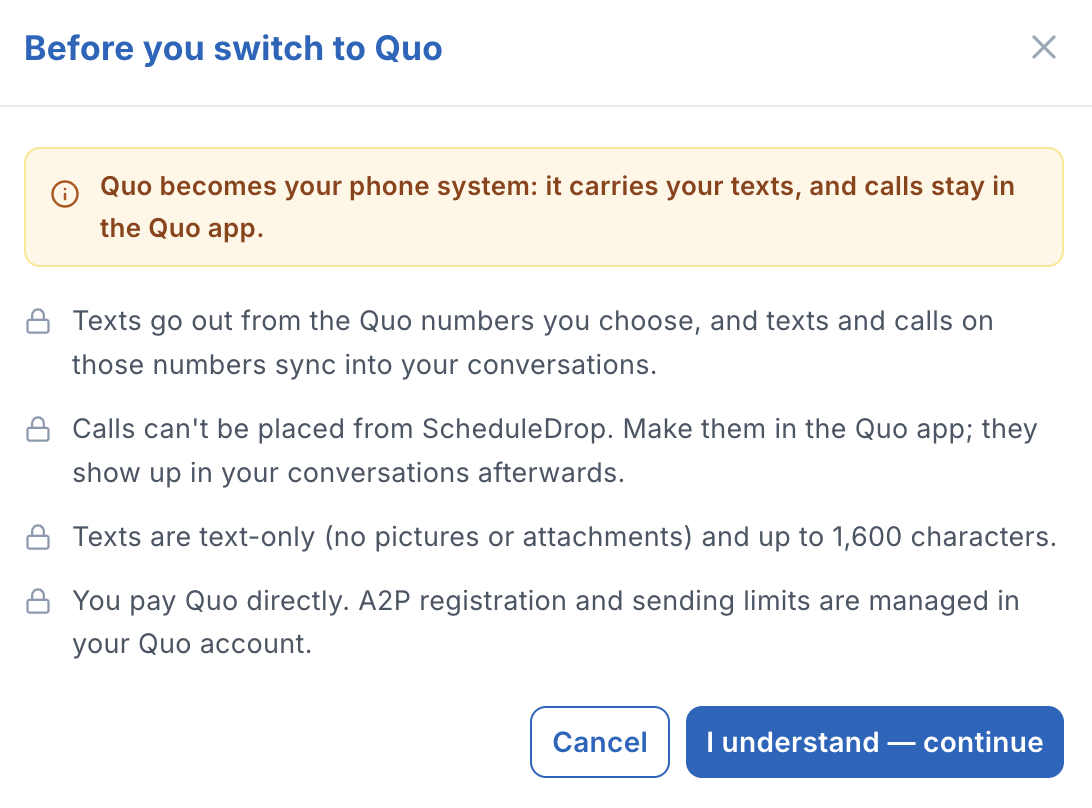
Send your automated texts from your Quo number
Already use Quo, formerly OpenPhone, for your business? Connect it to ScheduleDrop with an API key, choose your Quo numbers, and use them for booking confirmations, reminders, and other automated texts. You do not need to create a separate ScheduleDrop line for texting.
The right update, from the number they recognize
Reply from either place
Make the call in Quo. See the activity in ScheduleDrop.
Quo texts support up to 1,600 characters, with no pictures or attachments. You pay Quo directly, and A2P registration and sending limits are managed in your Quo account.
See the Quo connection screen


Your existing Quo number
One number. Both conversations.
Hi Jordan, your service is confirmed for Friday at 10:00 AM. Reply here if you have a question.
Sent through your Quo number
ScheduleDrop
Message and reply visible here
Quo
Message and reply visible here
Call placed in Quo → call activity appears in ScheduleDrop afterward.
New · Text and email templates
Write it once. Keep it ready for the next conversation.
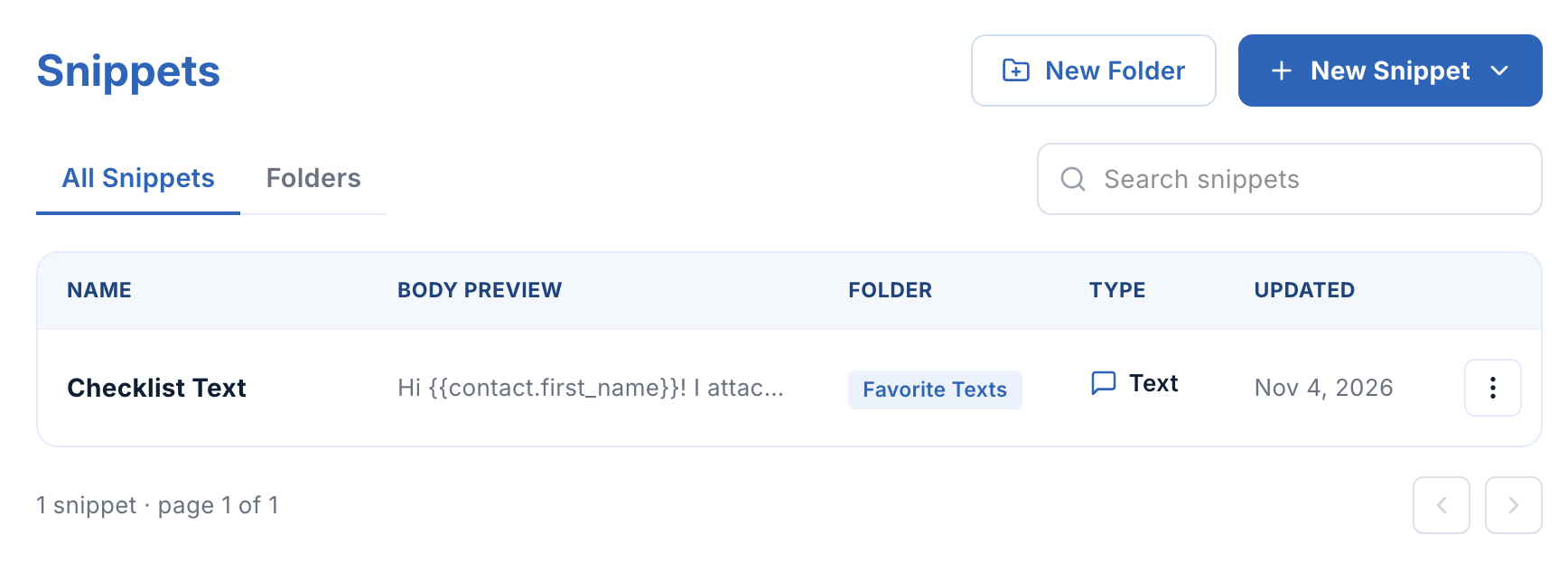
Checklists, preparation instructions, common questions, hiring follow-ups. Save the messages your team sends repeatedly as text or email snippets instead of typing them again.
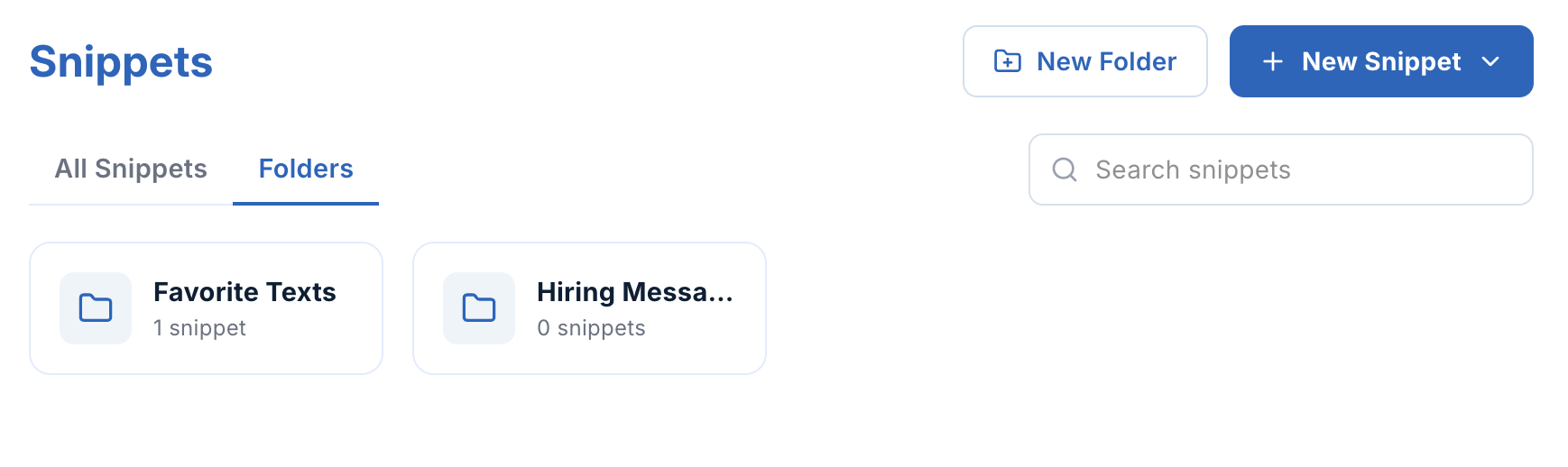
- Keep messages organized. Give snippets a name, search for them, and group them into folders such as Favorite Texts or Hiring Messages.
- Personalize without retyping. Insert contact fields, such as a first name, into your saved message.
- Include what the customer needs. The text editor supports attachments, files added by URL, and emoji with a ScheduleDrop phone line. Connected Quo numbers send text only.
- Check before you send. See text length, segment count, and estimated send cost. Send a test with sample contact values.
New · Provider teams
Assign the crew together. Keep each person’s details separate.
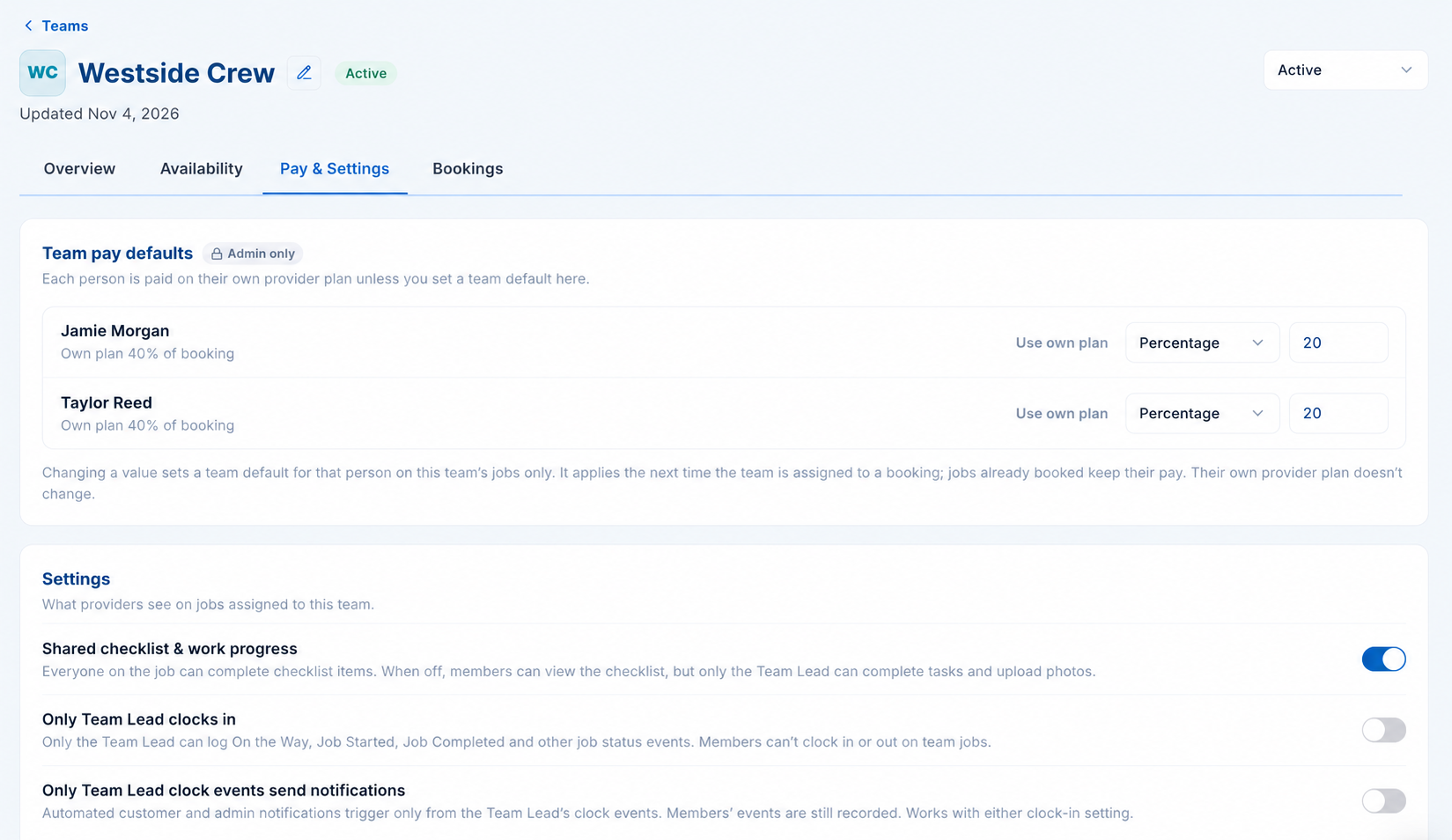
Create a reusable team from existing providers, choose a Team Lead, and assign that roster to a booking. Each person gets their own assignment, so you can work with the crew as a team and still manage each provider individually.
One roster you can use again
Pay stays individual
Choose who handles the work updates
Existing jobs keep their agreed pay
Improved · Calendar
See the money behind the day’s schedule
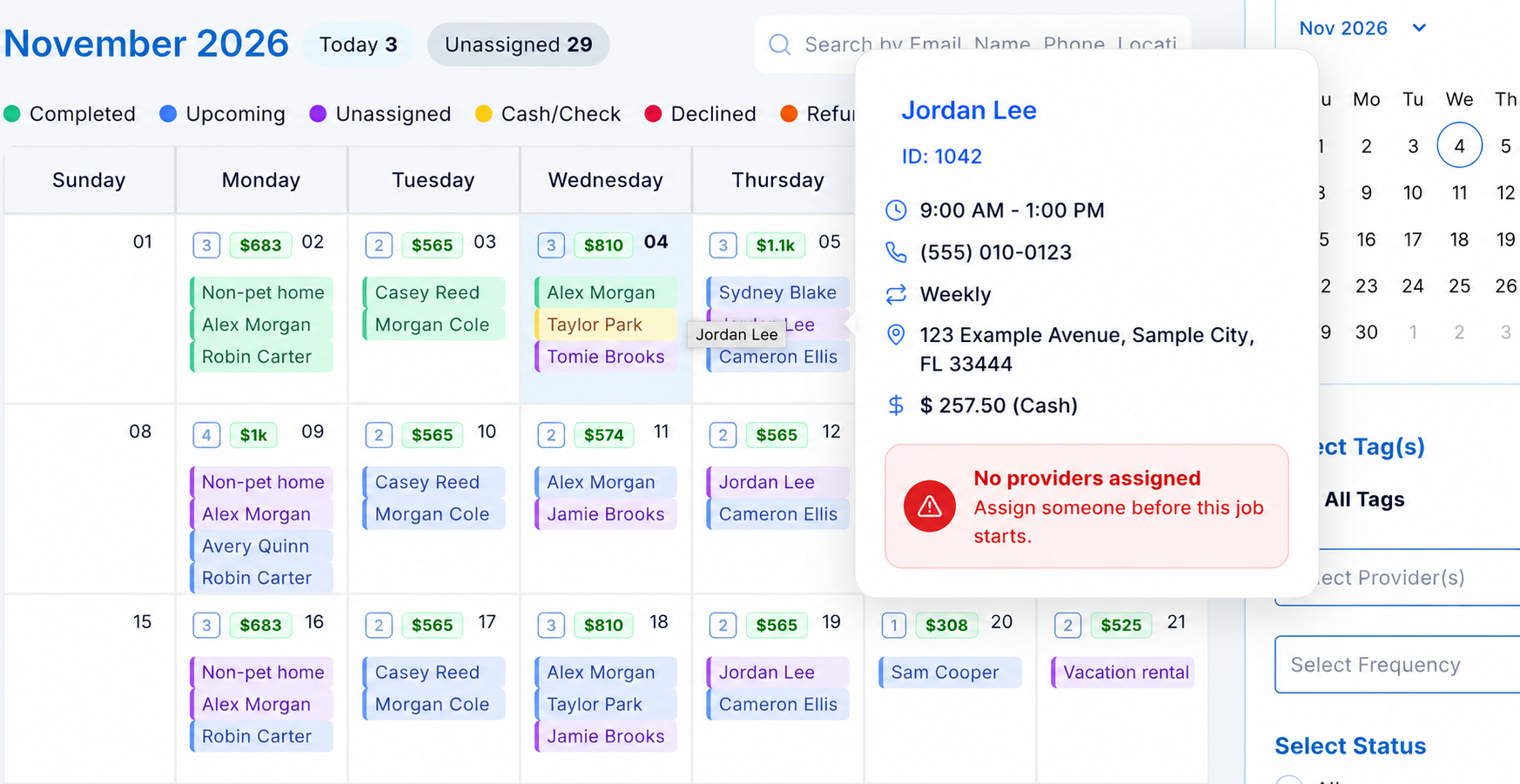
Calendar days now show a revenue badge alongside the booking count. Open the day summary to see what is on the books, provider pay, profit, and profit margin.
Hover over an unassigned booking to see the “No providers assigned” warning alongside the job details. The calendar’s unassigned count and purple booking labels also help you spot work that still needs a provider.
The day summary helps you plan scheduled work. It is separate from a report of payments already collected.
See the scheduling calendar →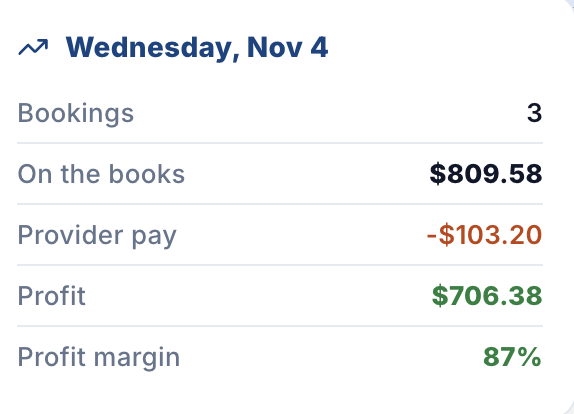
New and improved · Job finances
Track taxes, expenses, and what is left after the job
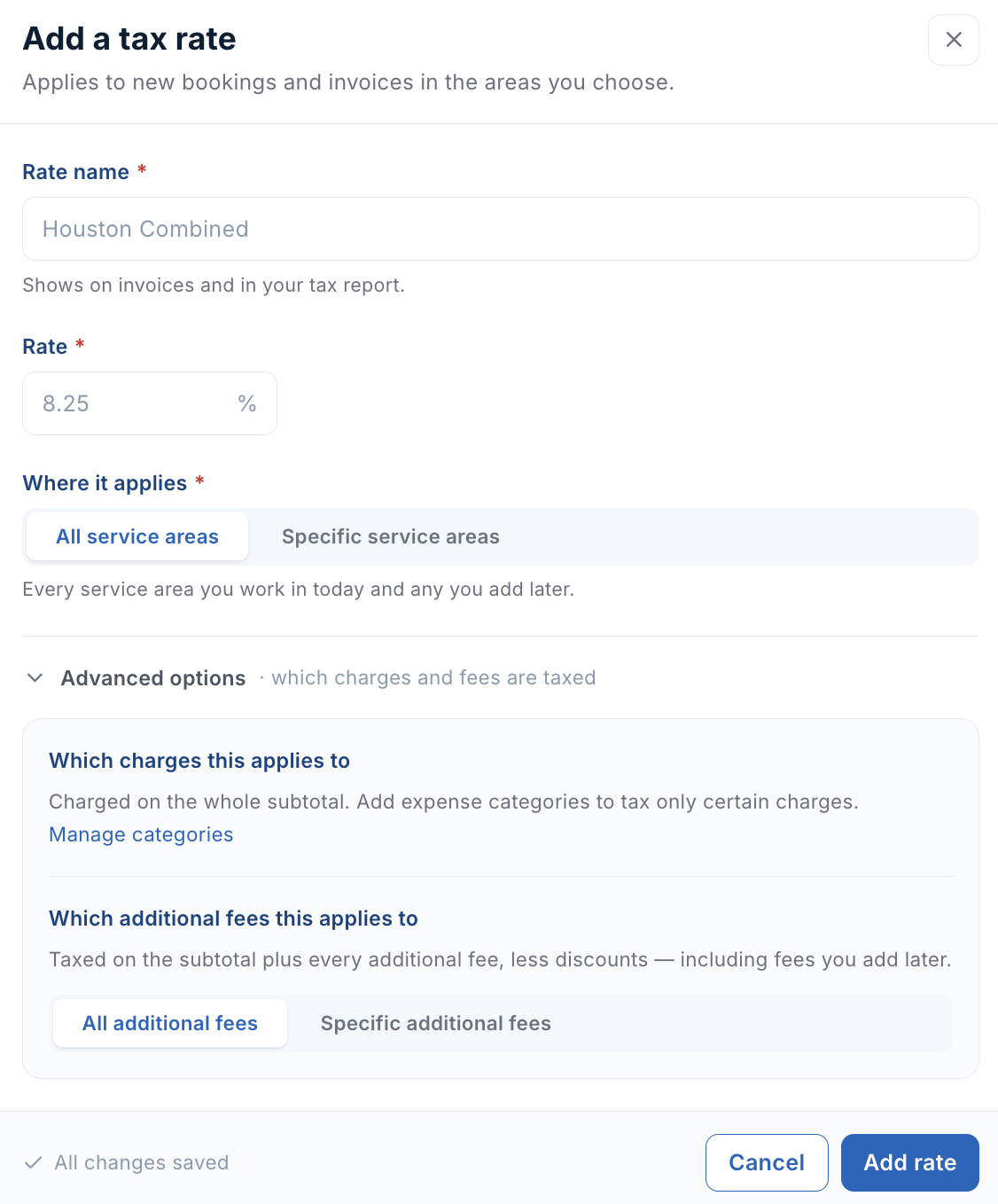
Set up the sales tax you charge
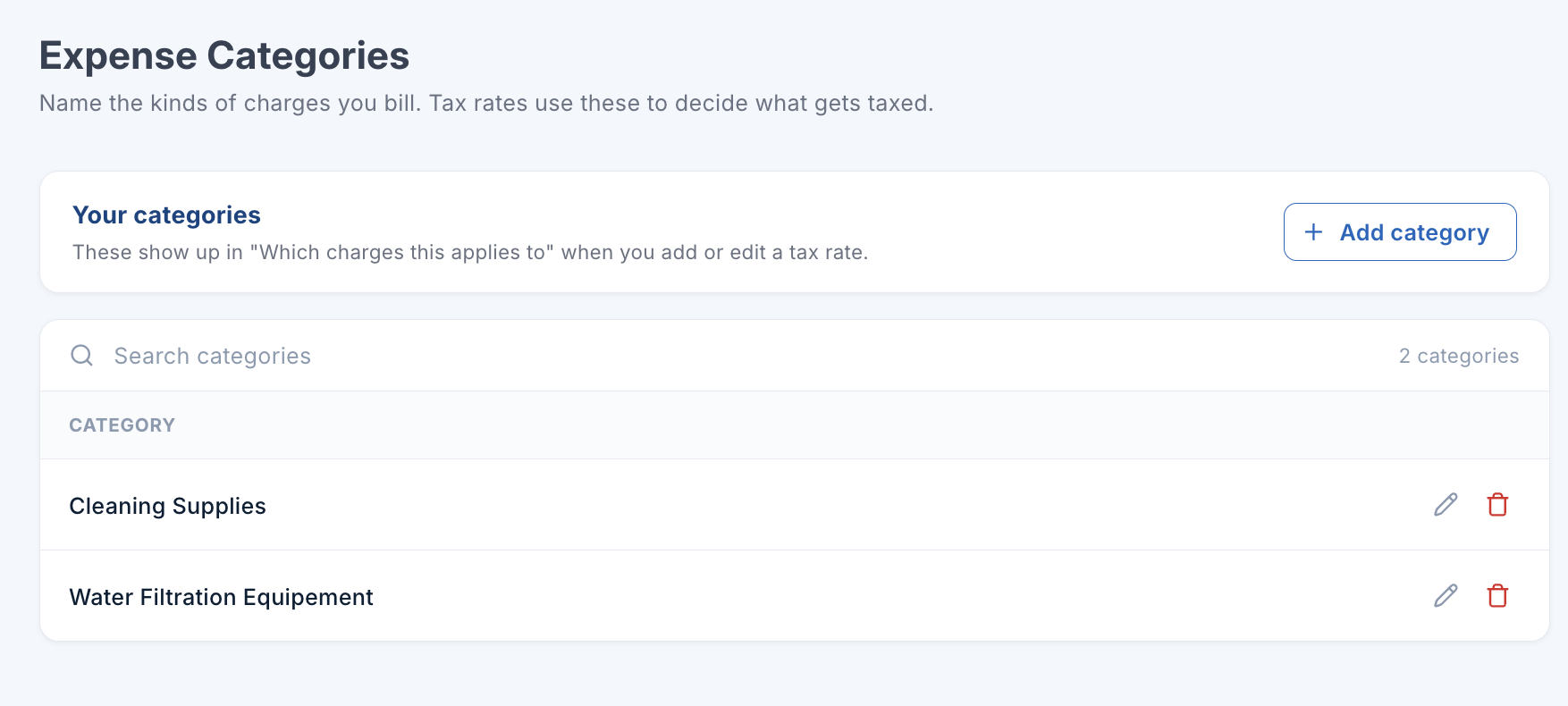
Choose which charges and fees are taxed
Record booking expenses
Automatic holds, with manual capture
Payment summary
Customer pays
- Subtotal
- $258.00
- Processing fee (3%)
- $7.74
- Sales tax (8%)
- $20.64
- Total
- $286.38
Your costs
- Provider pay
- $103.20
- Expenses
- $18.00
See the charge categories used by tax rates
Improved · Owner and admin app
A clearer booking screen on your phone
Create Booking and the booking details view have been refreshed in the mobile app. The new booking screen groups the form into sections, with tabs across the top to move between them.
- Find the customer quickly. Search an existing contact or enter a new customer’s details.
- Keep the total in view. The bottom bar keeps the total and View Summary within reach while you work through the booking.
- Choose the next step. Create the booking, save a quote, or keep a draft directly from the screen.
The mobile dashboard also gets a refresh in this release.
Explore the owner app →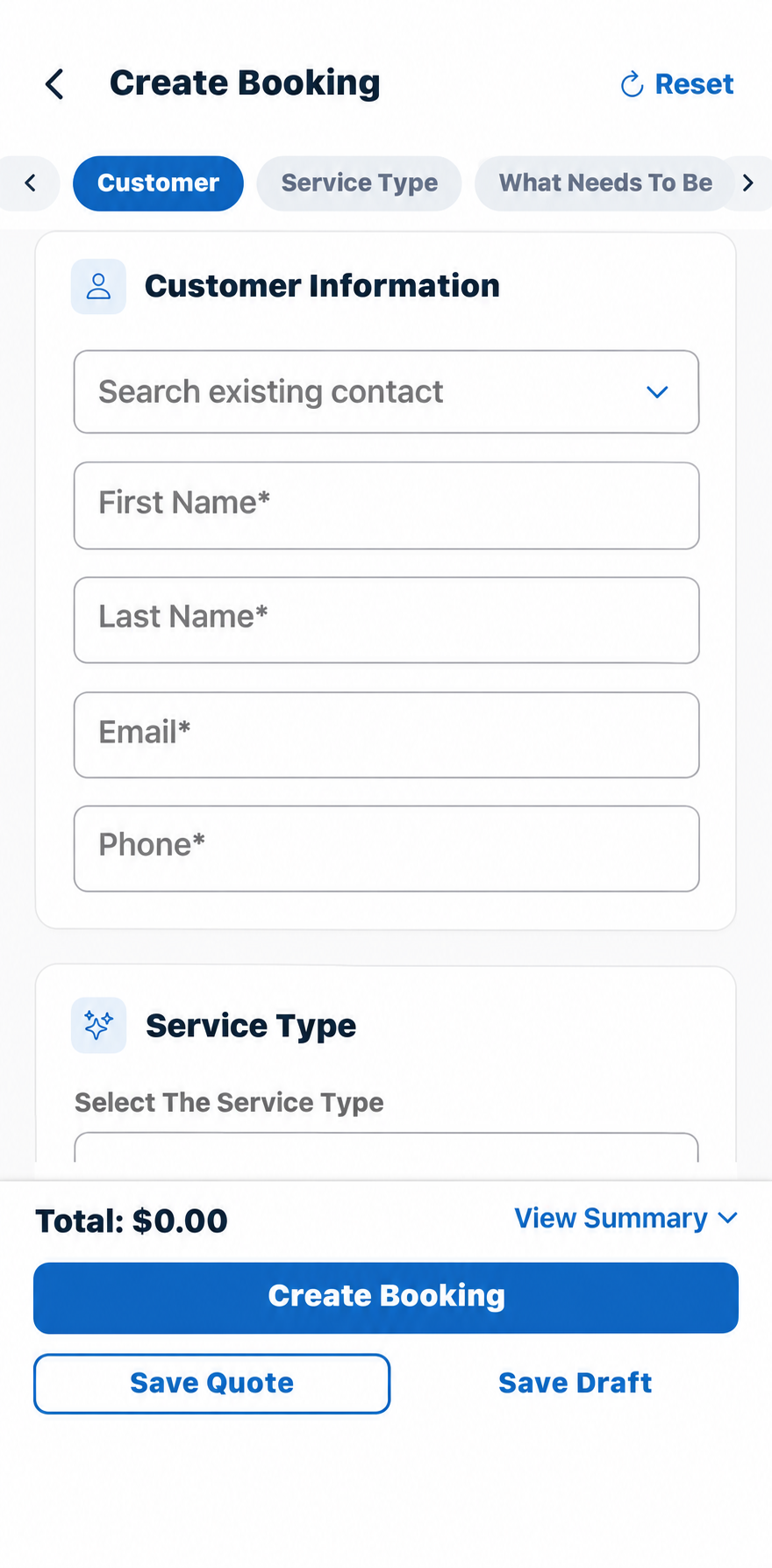
Improved · Hiring and notifications
Get to the conversation faster
Call or text from the hiring pipeline. Applicant cards now include email, text, and call actions, so you can follow up without searching for the contact elsewhere.
Web notifications are clickable. Open the conversation or related item straight from its notification. All and Unread views help you work through what still needs attention.
Hiring pipeline
Jordan Lee
Applicant
Web notifications
New text from Jordan Lee
Thanks for confirming my appointment.
Open the conversation →
Want a hand setting any of this up?
Open the help chat in your ScheduleDrop account. We can walk you through connecting Quo, setting up snippets, and getting your provider teams ready.
Book a demo